1. Overview
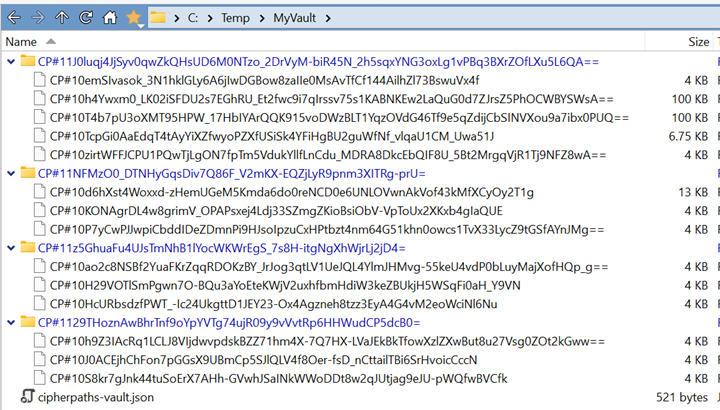
CipherPaths is a combined password manager and encrypted file manager for Windows. It stores everything inside a vault — an ordinary Windows folder in which every file name, folder name and file content is encrypted. Outside the app the vault looks like meaningless random data; inside, you browse it through a familiar explorer-style interface.
This guide walks through the whole workflow: creating your first vault, saving your recovery key, adding accounts and credentials, encrypting files by drag-and-drop, and viewing them safely without ever decrypting to disk.
2. Key concepts
- Vault — the encrypted root folder that holds all your data.
- Master password — the single password that unlocks the vault. It is never stored.
- Recovery key — a printable code that can recover the vault if you forget the master password.
- Account / site — a top-level folder holding one credential (web login, credit card or contact) plus any attached files.
- Credential — the login or card/contact details for an account.
3. Creating a vault
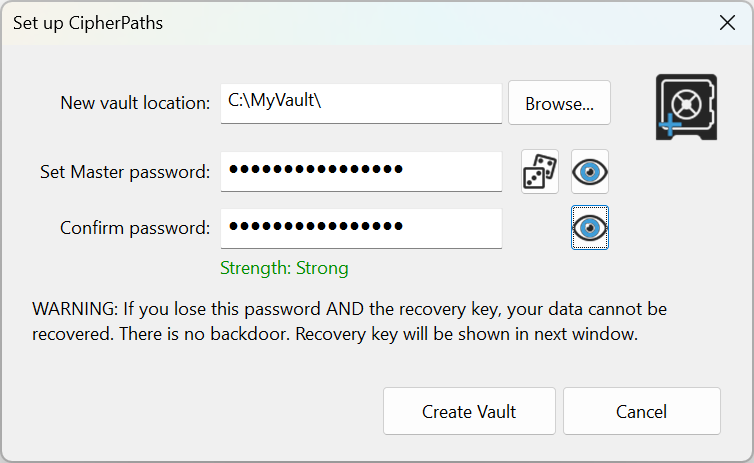
When you launch CipherPaths for the first time, choose Create New Vault from the launch dialog. The setup window then asks for three things:
- New vault location — click Browse… and pick an empty folder. This can be on your PC, a USB stick, or a synced cloud drive folder.
- Master password — type a strong password. The strength meter updates as you type; aim for “Strong”.
- Confirm password — re-type it to be sure.
Use the dice button to generate a strong password, and the eye button to reveal what you have typed. When you're happy, click Create Vault.
4. Your recovery key
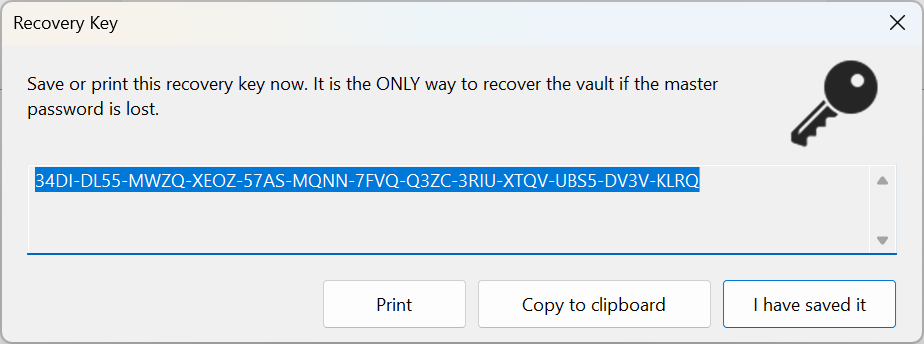
Immediately after the vault is created, CipherPaths shows your recovery key — a long dash-separated code. This is the only way to recover your vault if you forget your master password.
- Click Print to print it on paper and store it somewhere safe.
- Or click Copy to clipboard to paste it into another secure location.
- Only click I have saved it once it is genuinely stored somewhere safe.
5. Opening & unlocking a vault
On later launches, the launch dialog remembers the vault you used most recently (CipherPaths keeps track of your last 10 vaults — see Configuration & shortcuts). You can:
- Type your master password next to the remembered vault and click Re-open.
- Choose Open Vault to browse to a different vault folder.
- Choose Create New Vault to start a fresh one.
- Pick any of your other recent vaults from the Recent Vaults pane in the File menu, or from the CipherPaths icon's taskbar Jump List (right-click, or drag up on, the taskbar icon).
Your keys are derived from the master password and validated against the encrypted vault header. If the password is wrong, unlocking simply fails — nothing is decrypted.
6. The main window
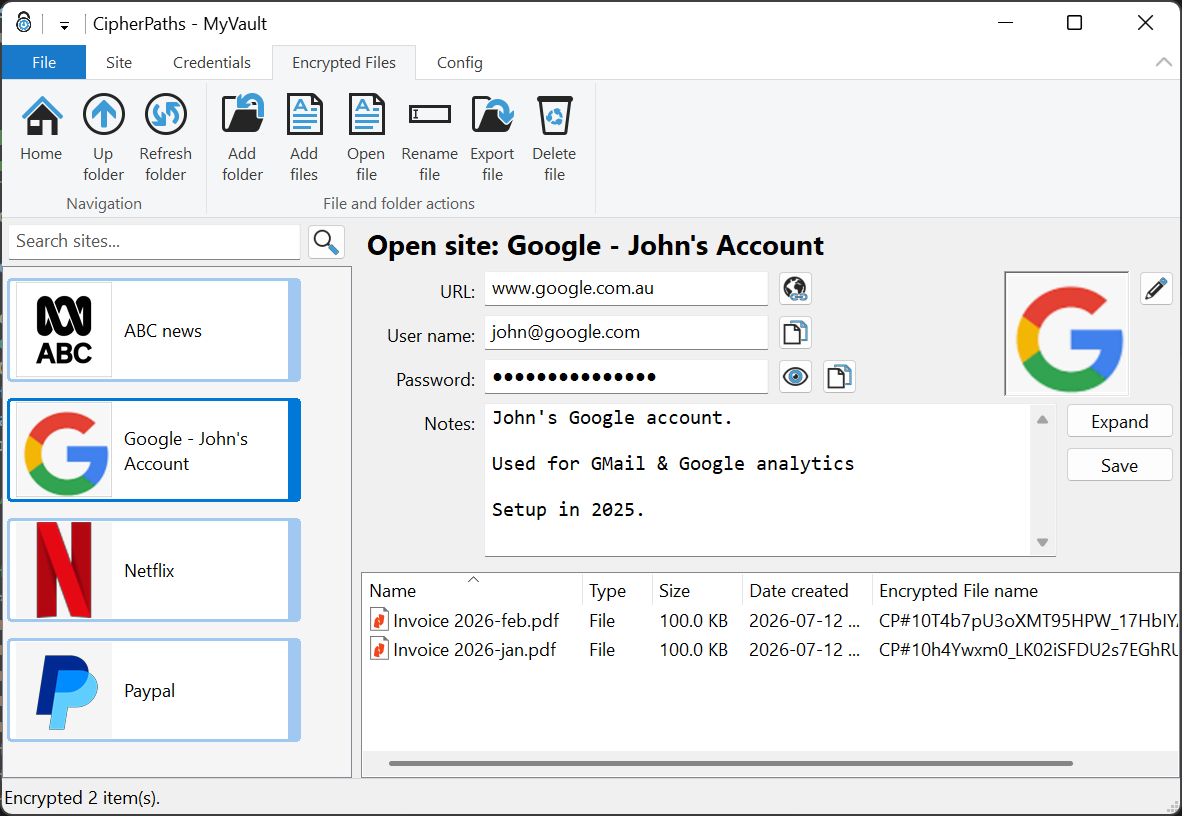
The main window has three panes plus a ribbon toolbar:
- Left pane — your accounts (“sites”), shown as colour-coded tiles with icons. A search box lets you filter instantly.
- Top-right pane — the credential for the selected account, with quick actions.
- Bottom-right pane — the files and sub-folders inside the selected account.
The ribbon tabs — File, Site, Credentials, Encrypted Files and Config — group all the commands you need. Tile colours identify the record type: blue for web logins, green for credit cards, and red for contacts.
7. Adding a site (account)
To add a new account, use Create new account from the ribbon. First choose the record type — Web Credentials, Credit Card or Contact Details — then give the account a name.
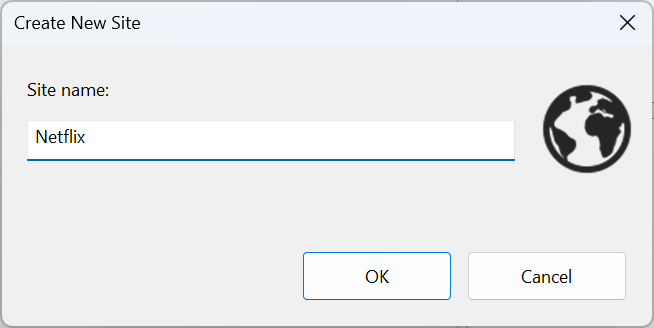
The new account appears as a tile in the left pane. Select it to edit its credential in the top-right pane, or open the full editor as described below.
8. Editing credentials
Select an account and edit its details directly in the credential pane, or open the full Edit Credentials dialog for every field of the chosen record type. For a web login this includes the URL, username, password and 2FA type; there are also read-only Created, Updated and Password set dates.
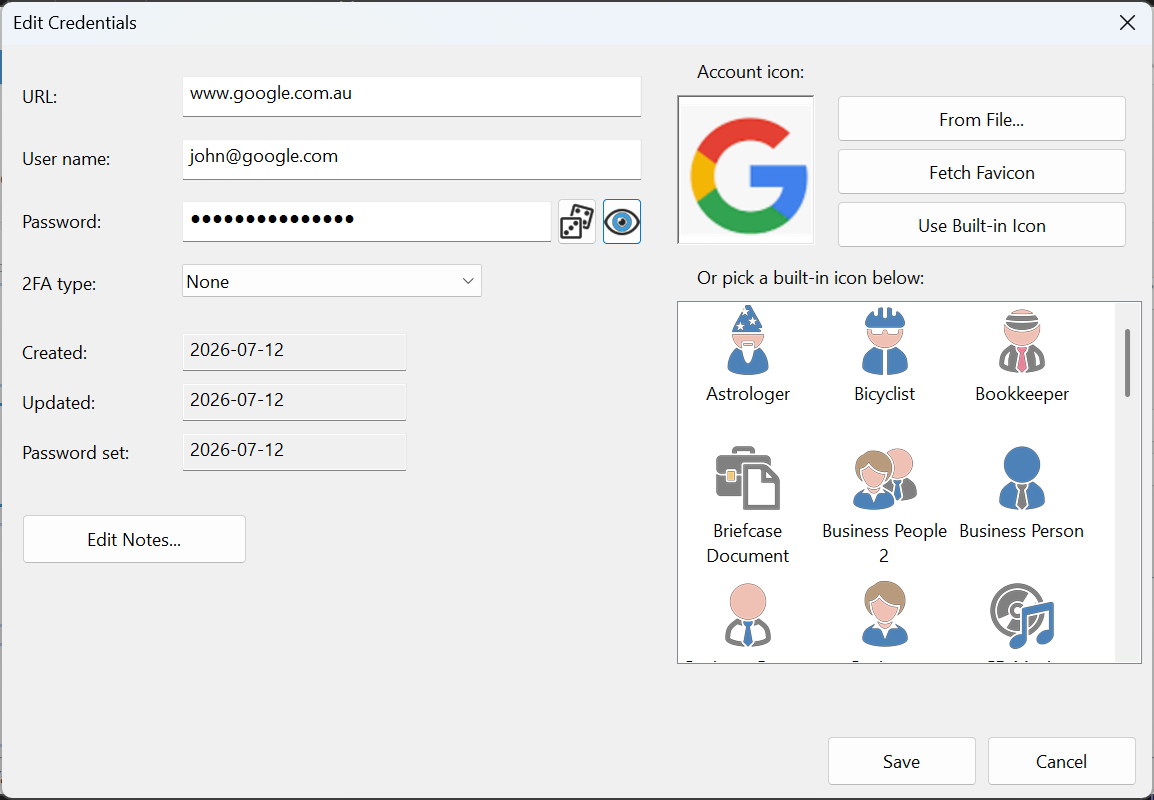
Quick actions in the credential pane
- Launch — open the URL in your default browser.
- Copy user / Copy pass — copy the username or password to the clipboard (passwords are auto-cleared after a timeout). And in the case of the password, it is excluded from the Windows clipboard history and any Windows cloud synchronisation that might be active.
- Reveal — toggle password masking.
- Notes — add free-form notes; use Expand for a larger editor and Save to store them.
Account icon
Give each account a recognisable icon: load one From File, Fetch Favicon from the site's URL, or pick one of the many built-in icons.
9. Password generator
CipherPaths includes a built-in password generator, reachable from the password fields (the dice button) and the ribbon. Adjust the length slider and toggle which character sets to include; the tool shows real-time strength, approximate entropy and an estimated brute-force time.
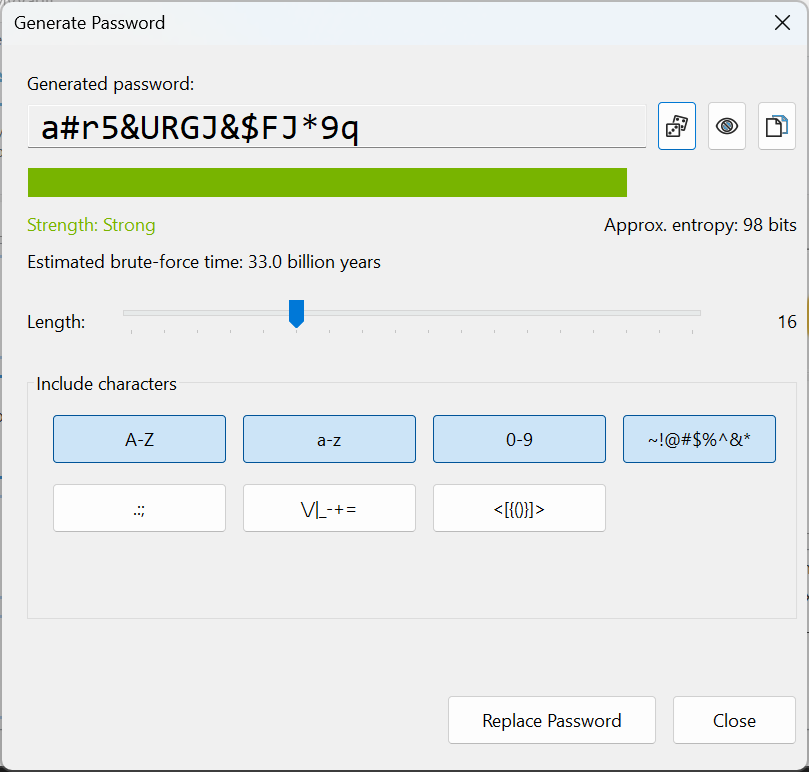
Click Replace Password to drop the generated value straight into the current credential.
10. Adding files & drag-and-drop
Any account (or sub-folder) can hold encrypted files. There are two easy ways to add them:
- Drag & drop — drag files (or whole folders) from Windows Explorer straight onto the file list. They are encrypted as they are copied in.
- Ribbon — use Add files on the Encrypted Files tab and pick the files to import.
As files are added they are encrypted with a fresh random key stream and written into the vault. The original source files are left untouched unless you choose to delete them yourself.
11. Folders & organising
Use the Encrypted Files ribbon tab to keep things tidy:
- Add folder — create a sub-folder inside the selected account.
- Rename file — change a file or folder name (re-encrypted on disk).
- Export file — decrypt a file back out to the normal file system.
- Delete file — permanently remove a file or folder (there is no encrypted trash).
- Up / Home / Refresh — navigate the folder tree.
The file list has sortable columns for Name, Type, Size, Date created and the raw encrypted file name, so you can correlate a display name with its ciphertext on disk.
Drag and drop
You can drag and drop files and folders into and out of Cipherpaths. For example you can drag a folder from Windows Explorer into Cipherpaths. This will import the documents and encrypt them.
You can launch multiple instances Cipherpaths (with the same or different vaults) and drag sites, folders or files between the vaults. If dragging between folders in the same vault, files will be re-encrypted using the same master password. If dragging between different vaults, files will be re-encrypted using the details for the destination vault.
Backups
You can also move the encrypted files around outside of Cipherpaths (for example to back them up, or duplicate them). But due to the file names being encrypted, it can be hard to know which files you are moving. So for a backup just copy the entire Vault folder.
12. Viewing files
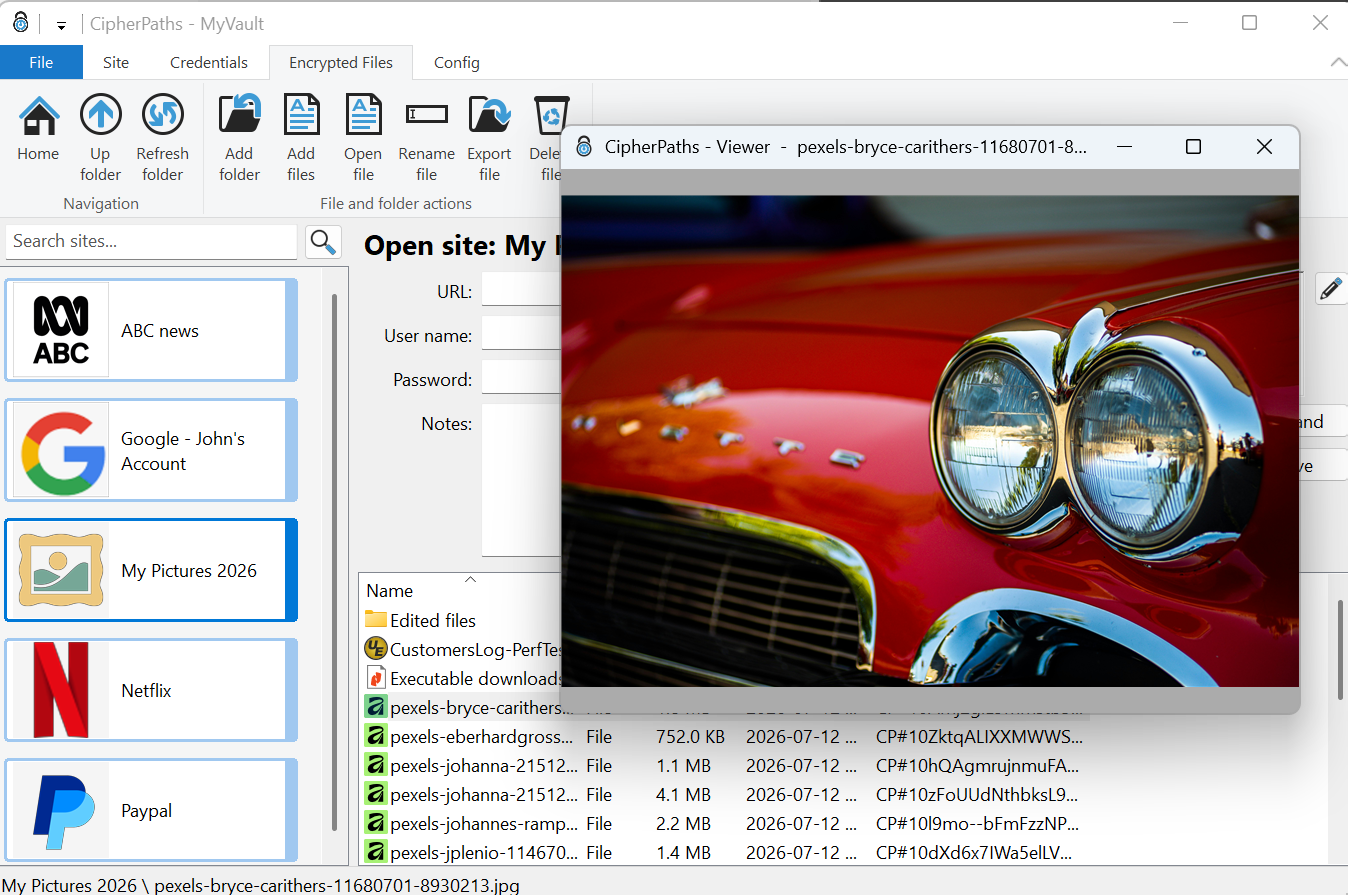
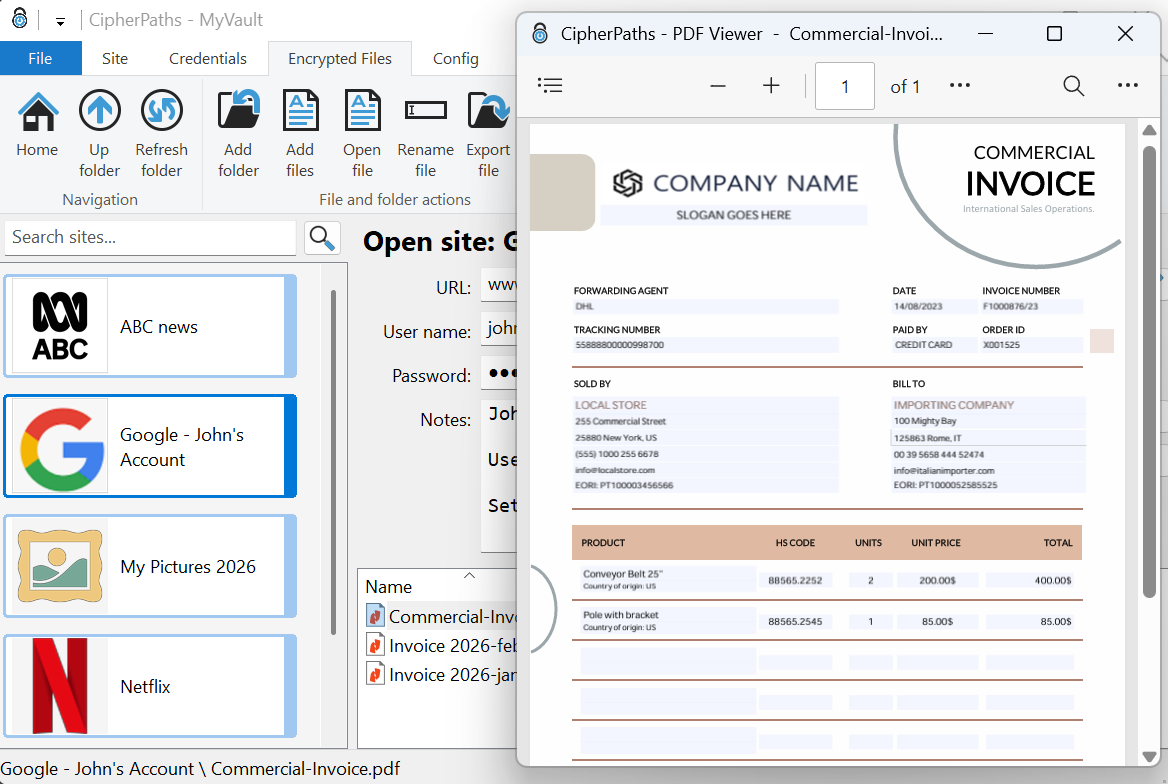
Double-click a viewable file to open it in the built-in viewer window. The following file types are supported by the internal viewer. JPG, PNG, TXT, PDF, MP4 (and most other video formats). For supported file types, the file is decrypted into memory only - no plaintext copy is written to disk. This includes videos where the data is decrypted and streamed on the fly. This avoids traces of the file being left on the disk after viewing. To view other file formats (or to edit files), you need to right click on the view and select, View with external viewer. In this case a temporary file is created on the disk. Another alternative is to export the file before viewing it.
Images
JPEG and PNG images open in a resizable viewer with smooth, aspect-preserving scaling. Use the arrow keys to move between the other files in the folder.
PDFs
PDF files open in a dedicated PDF viewer powered by Microsoft Edge WebView2, with page navigation, zoom and search.
Text
Text files open in a read-only viewer, and a separate editor window lets you make and save changes back into the vault.
13. Import & export
From the File menu you can move whole datasets in and out of a vault:
- Export Vault — decrypt the entire vault to a chosen folder as plaintext, preserving the full folder structure. Useful for backups or migrating away. You must re-enter your master password to confirm.
- Import Vault — encrypt an existing folder tree straight into your open vault. Imported items are added; name collisions are skipped.
Because an exported vault includes its hidden metadata files, exporting and then importing round-trips your accounts, credentials, notes and icons faithfully.
14. Configuration & shortcuts
The Config tab lets you review and customise keyboard shortcuts and other options, so the actions you use most are always a keystroke away.
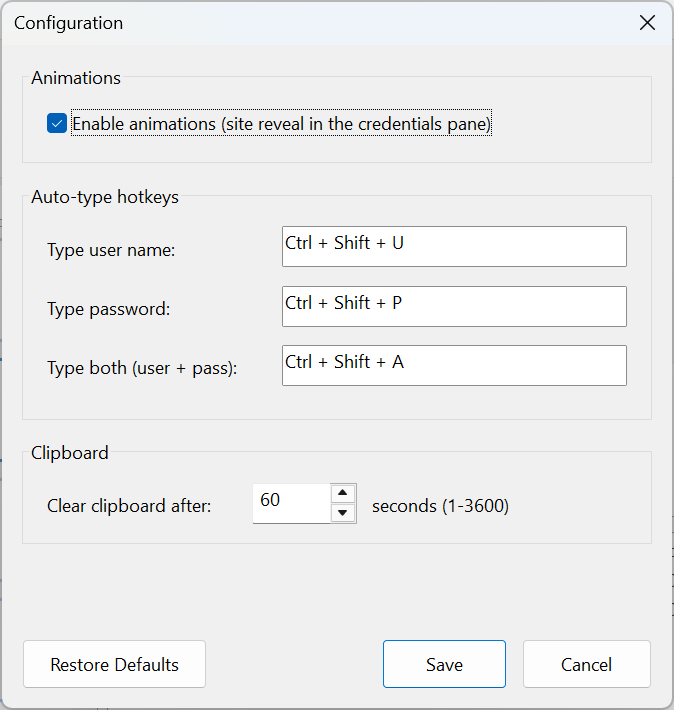
- Enable animations — This controls if the text decryption process is animated in the credential pane when a new site is opened.
- Type user name — This is a hotkey shortcut to auto-type the user name from the currently open site. This is like pasting from the clipboard but the value doesn't get stored in the clipboard. The default hot key combo is CTRL-SHIFT-U, but you can change this to any key combination, F8 could be used as a reasonable single key alternative.
- Type password — This is a hotkey shortcut to auto-type the password from the currently open site. The default hot key combo is CTRL-SHIFT-P, but you can change this to any key combination, F9 could be used as a reasonable single key alternative. Using hotkeys is safer than using the clipboard.
- Type both — This is a hotkey to insert the username, then a tab, then the password from the currently open site. The default is CTRL-SHIFT-A. Note that the hotkeys set here will override the normal function of these keys in your browser. So don't pick a key you already use in your browser.
- Clipboard clear — The time delay in seconds before the clipboard data will be cleared if you didn't use the hotkeys above and instead copied your password to the clipboard.
- Auto close site — The time delay in seconds before the currently open site will auto-close. Enable this for some added privacy if the computer is in a public space.
- Auto close vault — The time delay in seconds before the currently open vault will auto-close. Enable this for some added security if the computer is in a public space or shared.
- Filename padding — This option controls how much padding is appended to the name of files before the file names get encrypted. Padding obscures the visibility of the file name length (making it harder to guess what the encrypted file was). Use zero padding if you need short paths for OneDrive and don't care if people see the encrypted file name. Use 10 or more if you weant to hide the orginal file name lengths. Changing this only effect new entries (or renamed entries). Padding does not need to be consistent across a vault. Each file / folder can have different padding levels. This type of padding also also known as Padmé padding.
- Remember last vault location — On by default. When enabled, CipherPaths keeps a list of your last 10 opened vaults so it can offer a one-step re-open at launch. This same list also fills the Recent Vaults pane in the File menu and the CipherPaths taskbar icon's Jump List (right-click, or drag up on, the icon in the taskbar, to see it). Turn this off if you'd rather CipherPaths not remember which vaults you've opened — for example on a shared PC — and it will stop offering the re-open shortcut, the Recent Vaults pane will be empty, and any existing taskbar Jump List entries are removed.
- Clear Remembered Vault Locations — A button next to the option above that immediately forgets every vault CipherPaths currently remembers, without needing to turn the option off first. Use this if you want a clean slate — for instance before handing the PC to someone else — while still leaving the "remember" option switched on for the vaults you open from now on.
15. Command line options
CipherPaths can be told which vault to open right from the command line. This is handy for a desktop shortcut, a script, or a pinned taskbar icon dedicated to one particular vault. Pass the vault's folder as a single argument:
Put quotes around the path if it contains spaces. When a vault folder is given this way, CipherPaths skips straight to that vault's password prompt — overriding whatever vault would otherwise have been remembered from last time (see Configuration & shortcuts).
- If the folder doesn't exist, or isn't a CipherPaths vault, you'll see a short message and CipherPaths falls back to the normal launch dialog rather than getting stuck.
16. keyboard shortcuts
You can use the keyboard instead of the mouse for common tasks
- CTRL-SHIFT-U- Auto-type User name into another program. This key combination can be changed from the config window.
- CTRL-SHIFT-P- Auto-type password into another program. This key combination can be changed from the config window.
- CTRL-SHIFT-A- Auto-type user name and then password into another program. This key combination can be changed from the config window.
- F2- Rename selected site, file or folder.
- DEL- Delete selected site, file or folder. This can NOT be undone, take care.
- Arrow keys- Navigate within lists of files or sites.
- Page up / down- Navigate quickly within lists of files or sites.
- Typing A-Z- Typing the name of a site or file will scroll the site or file list to the first file that matches.
- Enter- View the currently selected file (or change into the currently selected folder.
- Backspace- Move up one level of folders.
- CTRL-S- Save all edits to the current credentials
17. Security tips
- Choose a long, unique master password — ideally a passphrase.
- Print your recovery key and store it offline (e.g. in a safe).
- Lock the vault when you step away from your PC.
- Keep a backup of your vault folder; encrypted backups are safe to store on cloud drives.
- Remember that exported (plaintext) copies are not encrypted — handle them carefully.
- Use hotkeys in preference to copy / paste to auto-fill passwords. The avoid storing data in the clipboard which can get synched or saved elsewhere.
- Use the internal viewer where possible to view files. No trace of the decrypted file will be left on the disk in this case.